Table of Contents
Purpose of This Guide
Accidentally deleting important files is something that happens to almost everyone at some point. Whether it’s a family photo, a work document, a school project, or an important video, losing a file can be frustrating and stressful. In many cases, files are deleted by mistake, but they can also disappear because of software errors, hard drive issues, formatting, system crashes, or malware attacks.
The good news is that deleted files are often not gone forever. When a file is deleted, the operating system usually removes its reference from the storage device instead of immediately erasing the actual data. This means there is often a window of opportunity to recover the file before new data overwrites it. Because of this, taking action quickly can significantly improve your chances of successful recovery.
Several factors can lead to file loss, including:
- Accidental deletion
- Emptying the Recycle Bin or Trash
- Formatting a drive or memory card
- System crashes and software errors
- Virus or malware infections
- Hardware failures and storage device issues
One of the most important things to understand is that recovery success depends heavily on timing. The longer you continue using the device after a file is deleted, the greater the risk that new data will overwrite the deleted file. If you notice important files are missing, it is best to stop saving new files to the affected drive and begin the recovery process as soon as possible.
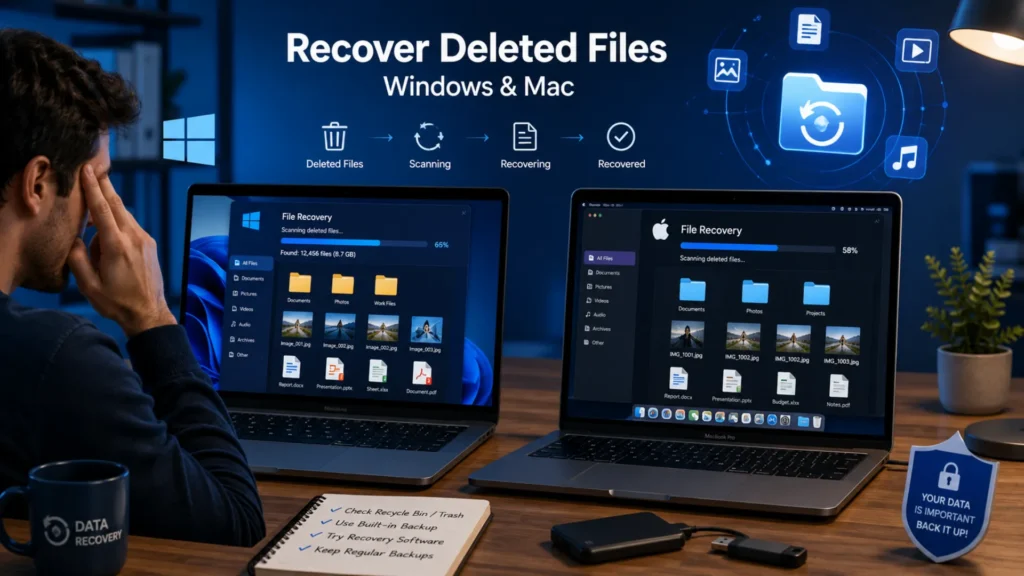
This guide will walk you through practical file recovery methods for both Windows and Mac computers. You will learn how to use built-in recovery options such as the Recycle Bin, Trash, File History, and Time Machine. We will also cover reliable file recovery software that can help recover files when built-in tools are not enough.
Whether you are a beginner or someone with little technical experience, this guide provides simple, step-by-step instructions to help you recover deleted files on Windows and Mac safely and effectively.
What Happens When a File Is Deleted?
Many people assume that a deleted file disappears instantly, but that is not always true. In most cases, the operating system simply removes the file’s reference from its directory and marks the storage space as available for new data. Until that space is overwritten, there is often a chance to recover the deleted file. Understanding what happens after deletion can help you act quickly and improve your recovery success rate.
How Windows Handles Deleted Files
When you delete a file using the Delete key, Windows usually moves it to the Recycle Bin. The file remains there until you permanently remove it or empty the Recycle Bin.
However, some actions bypass the Recycle Bin entirely and result in permanent deletion. These include using Shift + Delete, deleting files from certain external drives, or formatting a storage device.
How Mac Handles Deleted Files
On a Mac, deleted files are typically moved to the Trash folder. This gives users an opportunity to restore files before they are permanently removed.
Files become harder to recover when you empty the Trash, use permanent deletion methods, or erase a drive. At that point, macOS marks the storage space as available for new data.
Why You Should Stop Using the Drive Immediately
If you accidentally delete an important file, stop using the affected drive as soon as possible. Every new file, download, or software installation increases the risk of overwriting the deleted data.
The sooner you begin the recovery process, the better your chances of successfully restoring your files. Quick action is one of the most important factors in file recovery.
Common Ways Files Are Deleted:
- Pressing the Delete key
- Using Shift + Delete
- Emptying the Recycle Bin or Trash
- Formatting a drive or storage device
How to Recover Deleted Files on Windows
Accidentally deleting an important file can be stressful, but Windows offers several built-in recovery options that can help you get your data back quickly.
Recover Files from the Recycle Bin
The Recycle Bin is the first place to check when a file has been deleted.
Step-by-Step Process:
- Open the Recycle Bin from your desktop.
- Browse or search for the deleted file.
- Right-click the file and select Restore.
The file will be returned to its original location immediately. This method works for files that have not been permanently deleted.
Restore Files Using File History
If you have File History enabled, Windows automatically saves backup copies of your files.
Steps:
- Open the Start Menu and search for File History.
- Click Restore your files with File History.
- Browse available backups and locate the file or folder you need.
- Select the item and click the Restore button.
This feature is especially useful when recovering older versions of documents.
Recover Previous Versions
Windows may store previous versions of files and folders through restore points or backups.
- Right-click the file’s original folder.
- Select Properties.
- Open the Previous Versions tab.
- Choose an available version and click Restore.
This method can help recover files that were modified, overwritten, or deleted.
Use Windows Backup Recovery
If you regularly back up your system, you can restore deleted files from a backup.
- Open Control Panel.
- Go to Backup and Restore (Windows 7).
- Select Restore my files.
- Follow the on-screen instructions to recover your data.
Quick Tips
📌 Check for different file name variations when searching.
📌 Use Windows Search before trying third-party recovery software.
📌 If using recovery software, restore recovered files to a different drive to avoid overwriting recoverable data.
How to Recover Deleted Files on Mac
Losing an important file on your Mac can be stressful, but there are several built-in recovery options that can help you get it back quickly.
Restore Files from Trash
The first place to check is the Trash folder. When you delete a file, macOS usually moves it to Trash instead of removing it permanently.
Step-by-Step Process:
- Open the Trash icon from the Dock.
- Browse through the deleted files and locate the item you want to recover.
- Right-click the file and select Put Back.
- The file will be restored to its original location on your Mac.
If the file is still in Trash, this is the fastest and easiest recovery method.
Recover Files Using Time Machine
If you use Time Machine backups, recovering deleted files is simple.
- Open the folder where the deleted file was originally stored.
- Launch Time Machine from the menu bar or Applications folder.
- Browse through previous backups using the timeline on the screen.
- Select the file you want to recover and click Restore.
Time Machine can recover files even after they have been removed from Trash.
Recover Files from iCloud Drive
Files stored in iCloud Drive may be recoverable through the Recently Deleted folder.
- Sign in to iCloud and open iCloud Drive.
- Navigate to the Recently Deleted section.
- Select the files you want to recover.
- Click Restore to return them to their original location.
Use Finder and Backup Recovery Options
Finder can help you search for missing files using file names, dates, or file types. If the file cannot be found, check external backups, cloud storage services, or backup software you use regularly.
Helpful Tips
- Check that iCloud synchronization is enabled.
- Verify that your backups are up to date and accessible.
- Recover deleted files as soon as possible to improve recovery chances.
- Avoid saving new data on the drive until recovery is complete.
Following these methods can help you successfully recover deleted files on Mac before they are permanently lost.
Best File Recovery Software for Windows and Mac
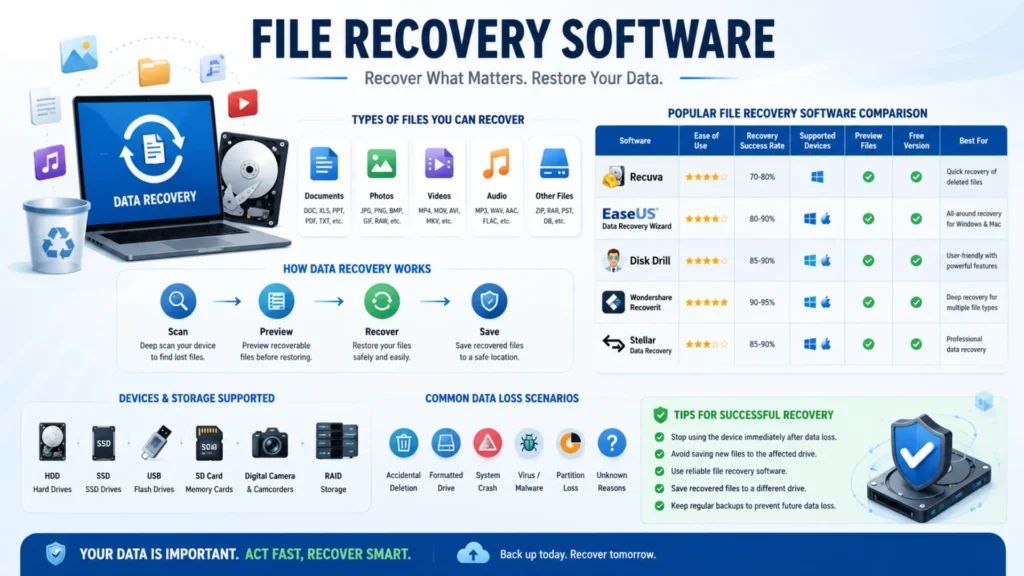
Choosing the right file recovery software can significantly improve your chances of getting back deleted files. While no tool can guarantee 100% recovery, several trusted options work well for both accidental deletions and more complex data loss situations.
| Software | Free Version | Windows | Mac | Best For |
|---|---|---|---|---|
| Recuva | Yes | Yes | No | Basic recovery |
| Disk Drill | Yes | Yes | Yes | General users |
| EaseUS Data Recovery | Yes | Yes | Yes | Deep scans |
| Stellar Data Recovery | Yes | Yes | Yes | Professional recovery |
Recuva is a great choice for Windows users who need a simple and lightweight recovery tool. Disk Drill offers an easy-to-use interface and supports both Windows and Mac, making it ideal for everyday users. EaseUS Data Recovery is known for its powerful deep scanning capabilities, helping recover files from damaged or formatted drives. For advanced recovery needs, Stellar Data Recovery provides professional-grade features and supports a wide range of storage devices.
Pros and Cons of Recovery Software
Pros
- Recover permanently deleted files
- Recover files from formatted drives
- User-friendly interfaces suitable for beginners
- Support for multiple file types and storage devices
Cons
- Free versions often have recovery limits
- Recovery is not always guaranteed, especially if data has been overwritten
- Premium versions can be expensive for occasional users
Using reliable recovery software as soon as possible after data loss gives you the best chance of successfully restoring your files.
Common Reasons File Recovery Fails
Recovering deleted files is not always successful. In many cases, files become permanently unrecoverable because of actions taken after deletion or underlying storage issues. Understanding the common reasons file recovery fails can help you act quickly and improve your chances of restoring important data.
Overwritten Data
When a file is deleted, the storage space it occupied is marked as available for new data. If you continue using the device, new files may overwrite the deleted data, making recovery difficult or impossible.
SSD TRIM Technology
Most modern SSDs use TRIM technology to improve performance. TRIM automatically clears deleted data blocks in the background, which can significantly reduce the chances of successful file recovery.
Physical Drive Damage
Hardware problems such as bad sectors, failed components, water damage, or physical impacts can prevent recovery software from accessing stored data. Severe damage often requires professional recovery services.
Malware and Corruption
Viruses, ransomware, file system corruption, and software errors can damage file structures and affect data integrity, reducing the likelihood of successful recovery.
Common factors that increase recovery failure risk:
- Continued device usage after file deletion
- Delayed recovery attempts
- Damaged or failing storage devices
- Formatting or repartitioning the drive
- Malware infections and file corruption
The sooner you stop using the affected device and begin the recovery process, the better your chances of retrieving lost files successfully.
Tips to Improve Recovery Success
Recovering deleted files is often possible, but your actions immediately after deletion can make a huge difference. Following a few simple best practices can significantly increase the chances of successful file recovery.
Best Practices
- Stop using the affected drive immediately to prevent deleted data from being overwritten.
- Avoid installing recovery software on the same drive where the files were lost.
- Save recovered files to another location, such as an external drive or different partition.
- Run recovery scans as soon as possible because recovery becomes harder when new data is added.
- Maintain regular backups using cloud storage or external drives to reduce the risk of permanent data loss.
By acting quickly and following these steps, you can improve your chances of recovering important files on both Windows and Mac systems.
How to Prevent File Loss in the Future
Recovering deleted files is helpful, but preventing file loss is even better. A few simple habits can protect your important documents, photos, and work files from accidental deletion, hardware failure, or system crashes.
Enable Automatic Backups
Automatic backups create copies of your files without requiring manual effort.
- File History (Windows): This built-in Windows feature automatically backs up files stored in your Documents, Pictures, Desktop, and other important folders. You can easily restore earlier versions if files are lost or changed.
- Time Machine (Mac): Time Machine regularly backs up your Mac to an external drive, making it easy to recover deleted files or restore your system to a previous state.
Use Cloud Storage
Cloud storage adds an extra layer of protection by storing files online.
- Google Drive keeps files synced across devices and allows easy recovery of deleted items.
- OneDrive integrates seamlessly with Windows and automatically backs up selected folders.
- iCloud helps Mac and iPhone users keep files safe and accessible from anywhere.
Keep Multiple Backup Copies
Never rely on a single backup source. Store copies of important files on an external hard drive and in cloud backup services. Having multiple backups greatly reduces the risk of permanent data loss and ensures your files remain safe even if one backup fails.
Frequently Asked Questions
Yes, in many cases permanently deleted files can be recovered if the storage space has not been overwritten by new data. Acting quickly improves the chances of successful recovery.
Yes. Even after the Recycle Bin or Trash is emptied, recovery software can often scan the drive and restore deleted files before they are overwritten.
Many free recovery tools are safe when downloaded from trusted developers. Always avoid unknown websites and scan downloads for security risks.
SSD recovery can be more difficult because of the TRIM feature, which may erase deleted data permanently. However, recovery is sometimes possible depending on the situation.
The best method is restoring files from a recent backup. If no backup exists, reliable file recovery software is usually the next best option for recovering lost data.
Conclusion
Recovering deleted files on Windows and Mac is often easier than many people think. In most cases, checking the Recycle Bin, Trash, or built-in backup tools can quickly restore lost files without extra software. If those options do not work, reliable file recovery software can help recover permanently deleted data.
The most important thing is to act quickly and avoid saving new files to the affected drive, as this can reduce recovery chances. To prevent future data loss, make regular backups using built-in backup solutions or cloud storage. A good backup strategy remains the safest and most effective way to protect your important files.